Partec Database Systems A5Doc Usage Techniques |
||
|
A5Doc
|
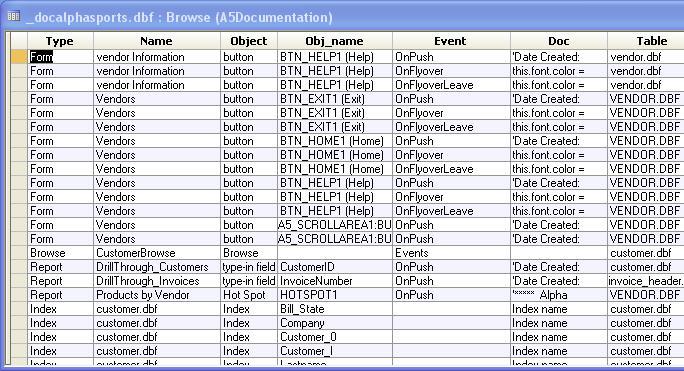
Documentation table. The main power of A5Doc is the ability to search all of the objects that have been documented. With the Update/New parameter set to Update, document the desired database objects (structures, rules, scripts), then go to the research tab and view the documentation. Press the Browse tool icon, or press F8, for browse mode. All the types of documentation can now be quickly scanned. Browse mode is very handy for scanning through records. Go back to form mode to see an individual record. All of the standard query features of A5 are available, and very useful. It is possible to quickly find a particular record, or group of records. Generally, you will want to search (using QBF) in the Code field. This is where the actual documentation is kept. After creating a query set, documentation for all records in the set can be printed. See the item for Reprint a report for a description of this. It is also possible to customize the documentation reports with your own annotation. See the item for User Annotation.
|